Documentation › The console
The console
The console is the normal way to work. It is at your instance’s address — for example https://starcraft.staging.thalamuscua.thalamusaicloud.com, the instance starcraft in its staging environment. Its pages follow a goal’s life: write it, run it, step in when needed, and review what happened. Every page has a ? beside its title that explains what the page is for and how to use it.
Home
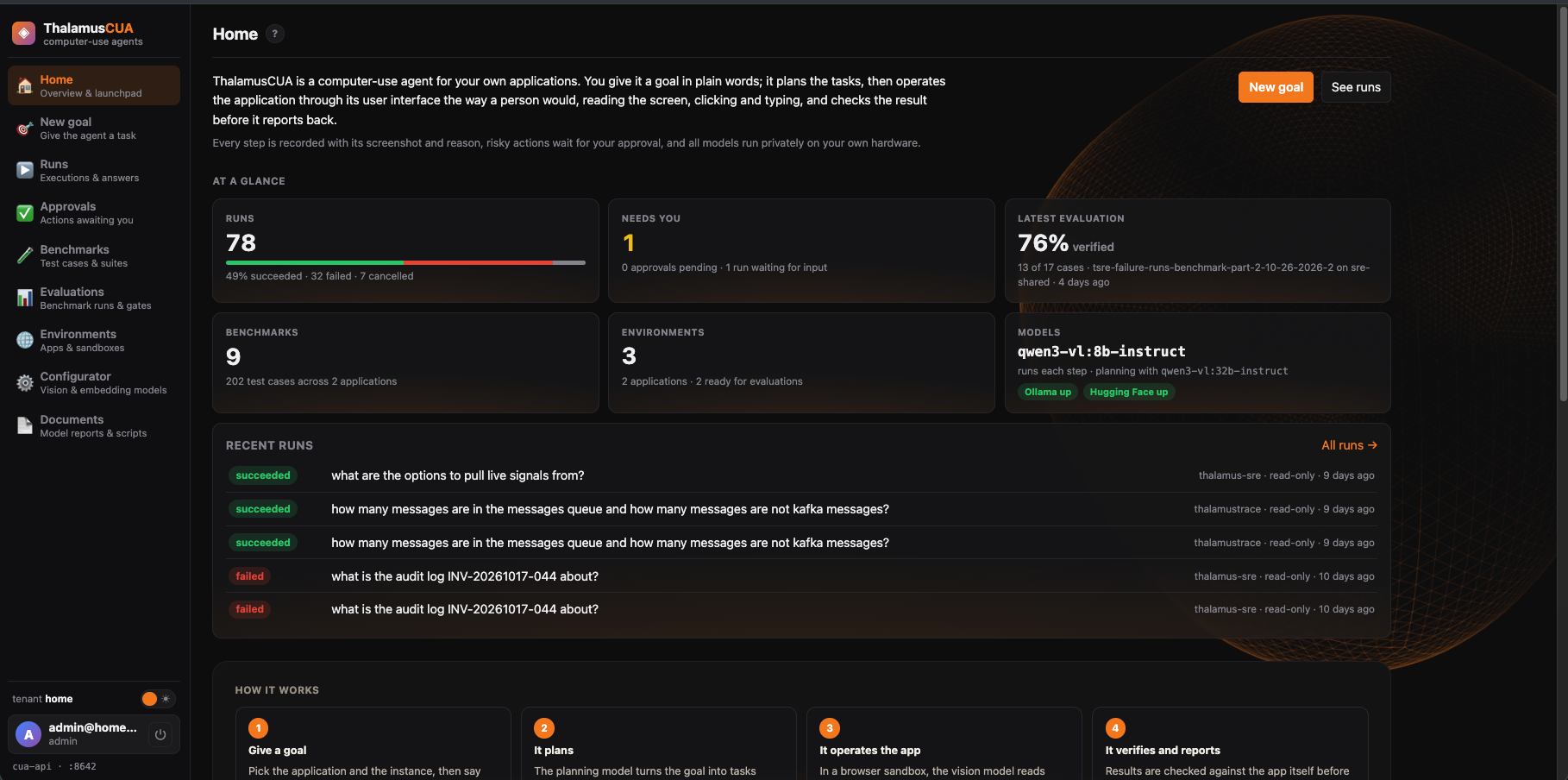
Console → HomeWhere to start: what is running, what needs you, recent runs, and short explanations of how ThalamusCUA works, how to use the console and the safety built in.
New goal
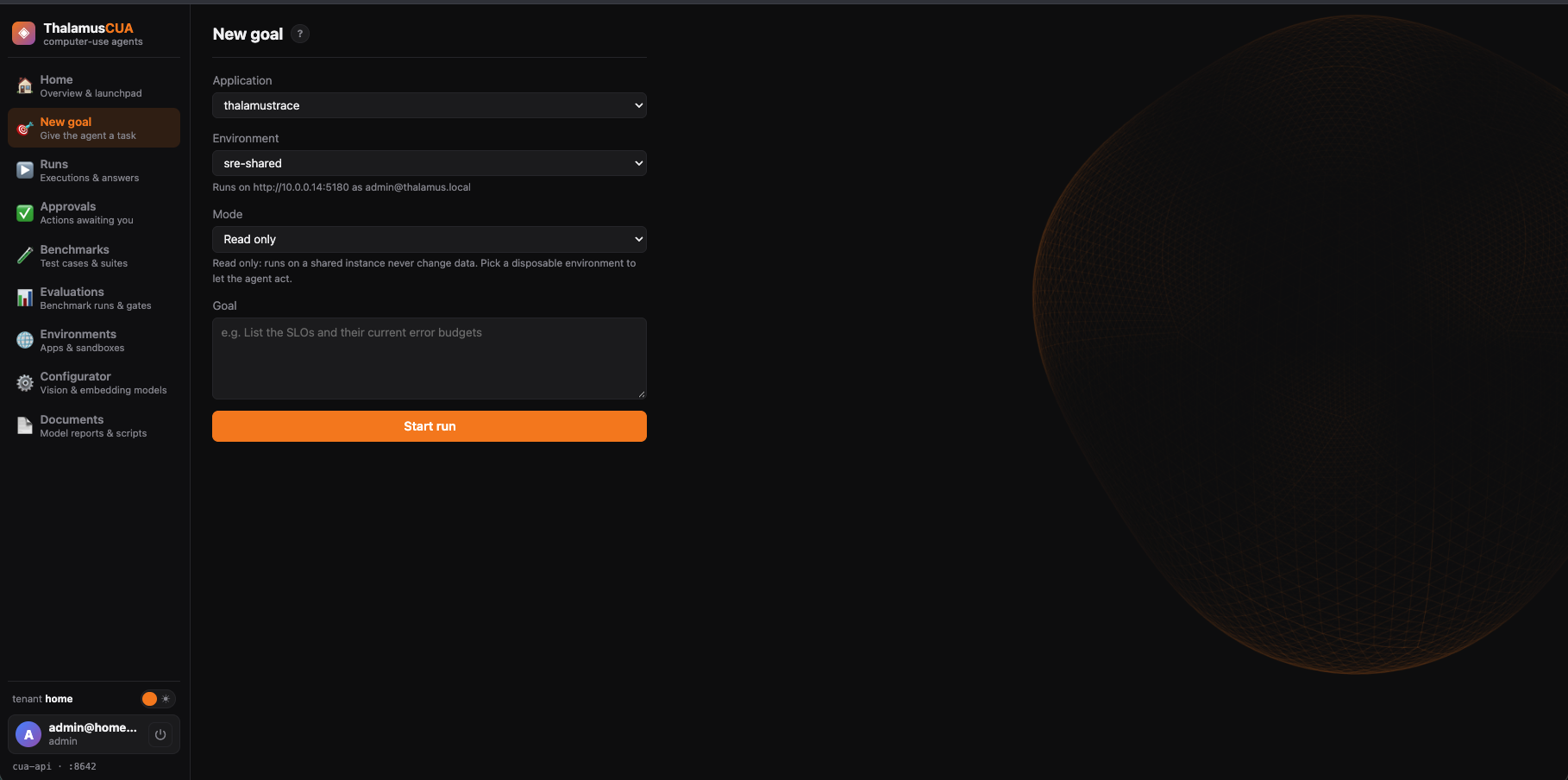
Console → New goalPick the application and the environment (a note shows the address and login it will use), choose the mode, and write what you want done in plain words. Only a disposable environment allows Supervised or Autonomous; everywhere else the run is Read only.
Press Start run. If the goal is ambiguous, the agent asks first (“Before I act, please clarify”) rather than guessing; answer and press Answer and continue. As soon as planning finishes the run starts and its run page opens.
How-to: give the agent a goal →
Plan editor
Console → /goals/<goal id>/plan (not yet linked from the console)The tasks the planner made for a goal, each with its risk level, skill and checks. Reorder them with ↑ and ↓, rewrite what a task should do, or Remove it; then Save draft or Approve & save. Each save is a new version of the plan.
New goal starts the run as soon as planning finishes, so an edited plan is for runs started afterwards; a run already going keeps the plan it started with. The goal id is in the Goal column of Runs.
How-to: review and adjust a plan →
Runs & run detail
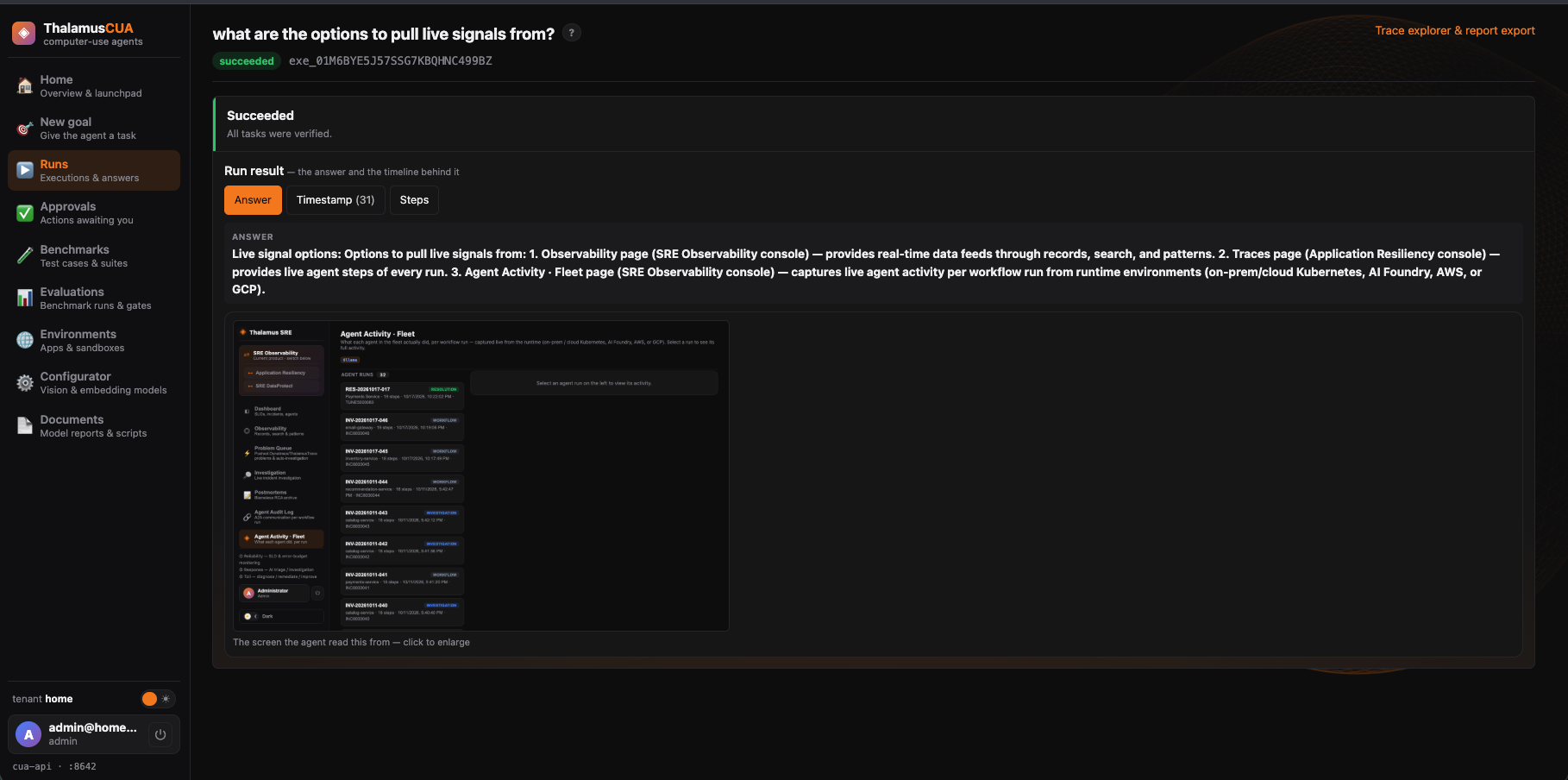
Console → Runs → a runRuns lists every execution: its id, goal, description, benchmark, date and state. Open one for its run page, which updates as the run works:
- a stage banner saying what the run is doing now (planning, working, waiting for you, failed) and, for a failed run, the likely cause;
- Answer (the result and the screen it was read from), Timestamp (the activity log) and Steps (each action with its screenshot and reason);
- Approval cards for actions on this run that wait for a decision, and a Send a hint… box while it is running;
- a playback of a finished run’s recording, Trace explorer & report export, and Cancel run (it asks you to confirm).
Approvals
Console → ApprovalsHigh-risk actions the agent has paused on, waiting for a person. Approve to let it continue, or reject to block that agent’s work — other agents in the same run carry on.
How-to: step in while it works →
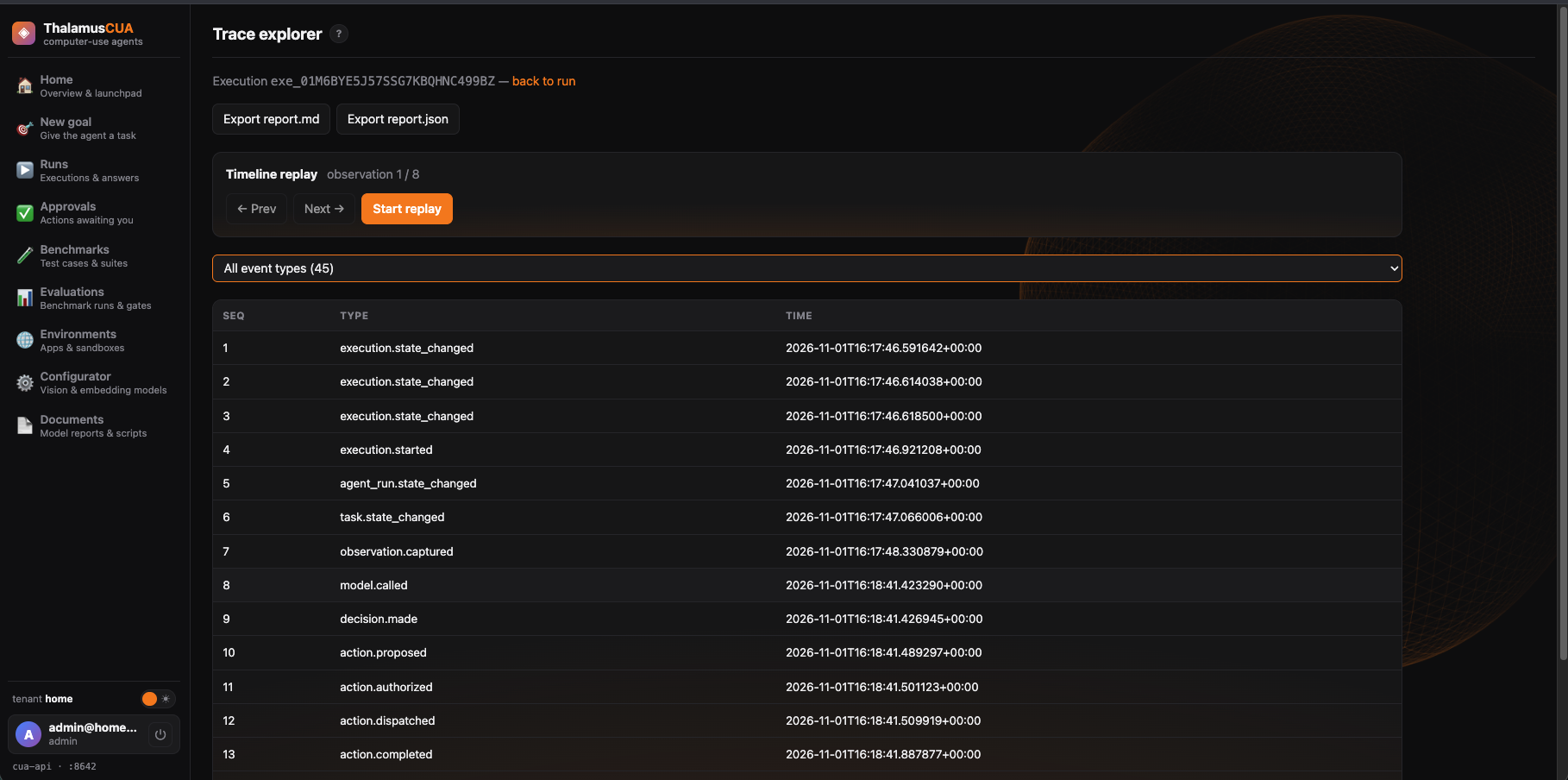
Trace explorer
Console → a run → traceEvery event of a run, filterable: step through the agent’s observations and actions with their screenshots, and download the report (readable Markdown or structured JSON).
Application briefs
Console → /apps/<application id>/brief (not yet linked from the sidebar)What the agent knows about an application. Generate draft has a large vision model draft the brief from the application’s screens; you edit it and press Approve & commit. Only an approved brief becomes trusted context. The same page lists selector-healing proposals — suggested fixes for controls the agent can no longer find — to accept or reject.
How-to: review what the agent knows →
Environments
Console → EnvironmentsEach instance the agent works in: its address, the login it uses, whether it is disposable, and snapshot and reset for disposable ones. See Environments & safety.
Benchmarks & Evaluations
Console → Benchmarks, EvaluationsTest cases for each application, and runs of them against a real instance or the mock site. See Benchmarks & evaluation.
Configurator
Console → ConfiguratorWhich model does which job, and where the model servers are. Pick a model that has been measured and a note appears under its role with the results, before you save. See Models.
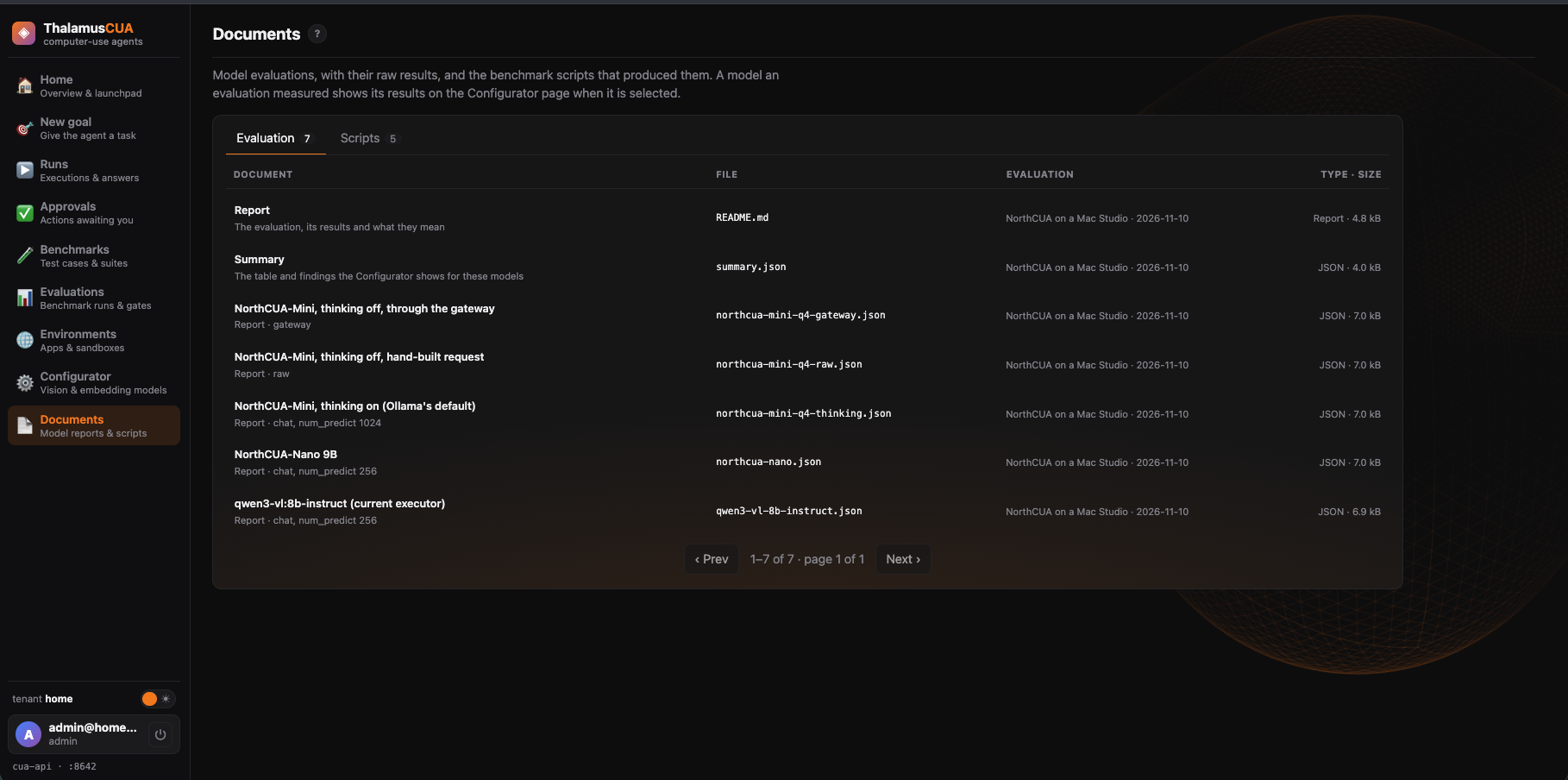
Documents
Console → DocumentsThe model evaluations — each one’s report, summary and raw results — and the benchmark scripts and task set that produced them. Evaluation and Scripts tabs list them ten at a time; click one to open it in a window with Source, Copy path and Download. The Configurator’s note links straight to its evaluation here.
How-to: compare models before choosing one →